
Why you need a Google review link
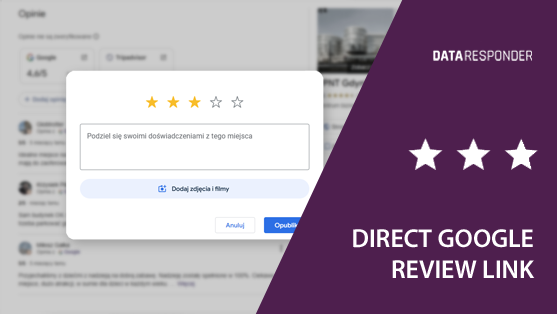
A link to the Google review form allows you to direct users straight to leaving a review on your business profile in Google. It can also be used in Data Responder forms.
Such links are commonly used in:
- QR codes leading directly to reviews,
- SMS or email messages sent to customers,
- message footers and printed materials,
- post-service feedback workflows.
To create such a link, you need one element: the Place ID of your Google Business profile.
Step 1 – open the Google Place ID Finder tool
Go to the page:
https://developers.google.com/maps/documentation/javascript/examples/places-placeid-finder
This is the official Google tool used to find the Place ID of business listings in Google Maps.
Step 2 – find your business
On the page, you will see a map and a search field.
You can find your business in two ways:
- by typing the business name,
- or by pasting the link to your Google business listing.
After typing the name, select the correct result from the list.
Then click your business on the map.
Step 3 – copy the Place ID
After clicking the business on the map, you will see an information panel.
In this panel, you will find the field:
Place ID:
ChIJBTGj9sig_UYR0T52O0hw3aI
This is the correct identifier of your Google business listing.
Copy the entire string – without spaces and without modifications.
How to build the Google review form link
Once you have your Place ID, you can create a direct link to leave a review.
Use the following format:
https://search.google.com/local/writereview?placeid=PLACE_ID
Then replace PLACE_ID with your identifier.
Example:
Place ID:
ChIJBTGj9sig_UYR0T52O0hw3aI
Ready-to-use review link:
https://search.google.com/local/writereview?placeid=ChIJBTGj9sig_UYR0T52O0hw3aI
After opening this link, the user will see the review form for your business listing. To submit a review, the user must be logged into their Google account.
How to check if the link works correctly
After creating the link, it is recommended to test it immediately.
Check:
- whether the correct business review form opens,
- whether the business name displayed is correct,
- whether any error message appears.
If the form opens and shows your business – the link has been prepared correctly.
Most common mistakes when creating the link
- pasting an incomplete Place ID – even one missing character causes an error,
- adding spaces inside the identifier,
- using an outdated or incorrect Place ID,
- selecting the wrong business with a similar name.
For this reason, always test the result before using the link in forms or customer-facing materials.
Where to use the finished review link
Once prepared, the link can be used across multiple customer communication channels.
Most common uses:
- QR codes leading directly to reviews,
- SMS messages sent after completing a service,
- email messages thanking customers for their visit,
- company website,
- printed materials (leaflets, business cards, stickers).
You can also use this direct link in a button on the final thank-you panel of a Data Responder form. In this scenario, a user who submits the Data Responder form can additionally leave a review on your Google profile.
Conclusions
Obtaining a Google review link requires one technical step: finding the Place ID of your business listing.
To create a working link:
- find your business Place ID using Google’s tool,
- insert the identifier into the review link format,
- verify that the link works correctly,
- use the link to direct customers straight to your Google review form.
After creating the Place ID once, you can use the same link for a long time without needing to reconfigure it.